Can't Attach HEIC to Email? Fix for Outlook and Gmail
You email a few iPhone photos to a coworker or family member, and they reply that the attachments won't open, show up blank, or download as a file their computer doesn't recognize. The culprit is the format: your iPhone saved those photos as HEIC, and plenty of email clients — especially on Windows and Android — can't preview or open it.
In a hurry? Convert the photos to JPG before you attach them and anyone can open them, on any device. It's free and runs entirely in your browser.
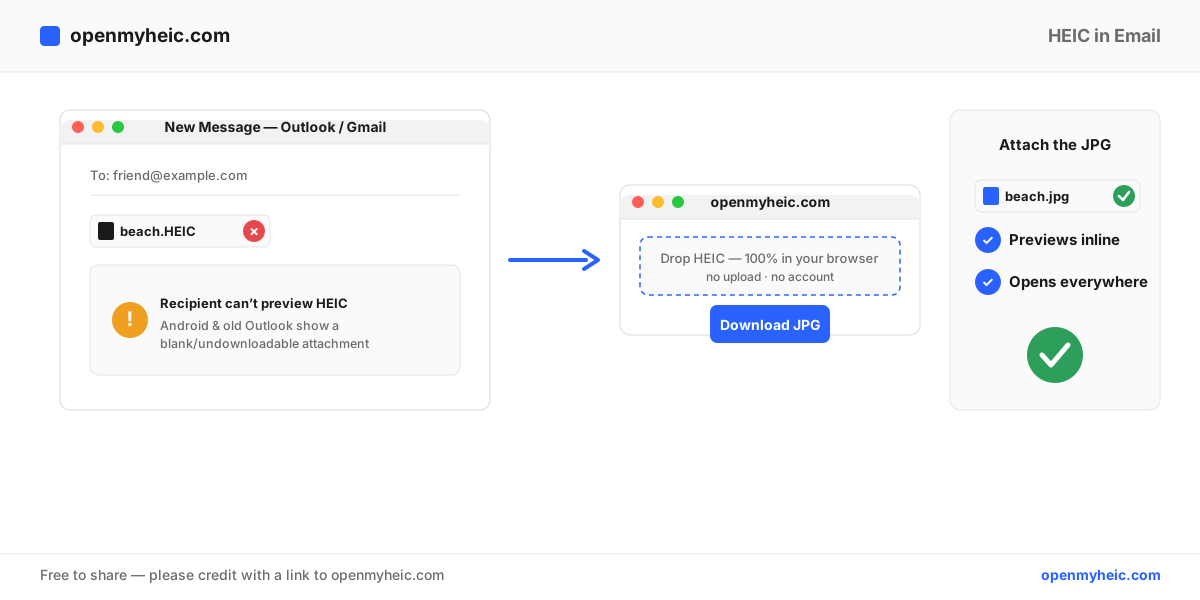
Why HEIC attachments fail in email
Email doesn't convert your files — it sends them exactly as they are. If you attach a HEIC, the recipient's email app has to know how to render HEIC, and most don't:
- Outlook on Windows often shows the attachment but can't preview it, or opens it in an app that throws a codec error.
- Gmail (web and Android) frequently shows no thumbnail and the download opens nothing on a non-Apple device.
- Windows Mail and older clients treat
.heicas an unknown file type.
Apple devices handle HEIC fine, so the photo looks perfect on your end — which is exactly why the problem is invisible until someone replies that they can't open it.
Fix 1 — Let your iPhone convert on send (automatic, but unreliable)
iPhones have a setting that should convert photos to JPG when you share them:
Settings → Photos → scroll to "Transfer to Mac or PC" → Automatic.
This helps in some share flows, but it doesn't reliably kick in when you attach directly inside the Mail app, and it does nothing for photos you've already sent. It's worth enabling, but don't rely on it alone.
Fix 2 — Convert to JPG before attaching (reliable)
This guarantees the recipient can open the photos:
- Open the HEIC to JPG converter in your phone or computer browser.
- Add the photos you want to email. Conversion happens on your device — nothing is uploaded.
- Download the JPGs (use the batch converter for several at once).
- Attach the JPGs to your email instead of the HEIC originals.
JPG previews inline in every email client and opens on Windows, Android, Mac, and the web with no extra software.
Fix 3 — Change the camera format going forward
To stop making HEIC files entirely:
Settings → Camera → Formats → Most Compatible.
From then on, new photos save as JPG and email without any conversion. Older HEIC photos still need converting once. The trade-off: JPG files are roughly twice the size of HEIC, so you'll use more storage — see HEIC vs JPEG for the details.
Sending options compared
| Approach | Recipient can open | Reliable | Effort |
|---|---|---|---|
| Attach HEIC as-is | Only on Apple devices | No | None |
| iPhone "Automatic" transfer setting | Usually | Partly | One-time toggle |
| Convert to JPG, then attach | Everyone, everywhere | Yes | ~10 seconds |
| Switch camera to "Most Compatible" | Everyone (new photos) | Yes, going forward | One-time toggle |
Troubleshooting
- You already sent HEIC files and they can't be opened. The recipient can convert them too: they just drop the
.heicattachment into the HEIC viewer to see it, or the converter to save a JPG. - The email is too large after converting. JPGs are bigger than HEIC. For many photos, use a shared link or cloud folder, or lower the export quality slightly.
- Photos rotate or lose orientation. Convert with our tool, which preserves orientation, rather than renaming the file.
- Screenshots email fine but photos don't. Screenshots are already PNG. Only camera photos are HEIC — those are the ones to convert.
Frequently asked questions
Why can't the person I emailed open my iPhone photos?
They're HEIC files, and the recipient's email client or device can't read HEIC. Send JPGs instead and the problem disappears.
Does Gmail convert HEIC to JPG automatically?
No. Gmail sends and receives the file as-is. Convert to JPG before attaching.
How do I open a HEIC someone emailed me?
Save the attachment, then open it in the browser-based HEIC viewer or convert it to JPG — no software to install.
The bottom line: email never converts your files, so the fix is to send JPGs. Convert HEIC to JPG before attaching, or set your iPhone camera to Most Compatible so new photos are email-ready. Both keep your photos openable on every device. Learn more about what HEIC is.