How to Use HEIC Files in Canva (Convert to JPG First)
You go to add an iPhone photo to a Canva design, drag it into the uploads panel, and Canva refuses it with "unsupported file type" — or it simply never appears. The photo is a HEIC file, and Canva doesn't accept HEIC. The fix is quick: convert it to JPG or PNG first, and it uploads like any other image.
In a hurry? Convert your HEIC to JPG right in your browser, then drag the JPG into Canva. It's free, nothing is uploaded to a server, and it works on phone or computer.
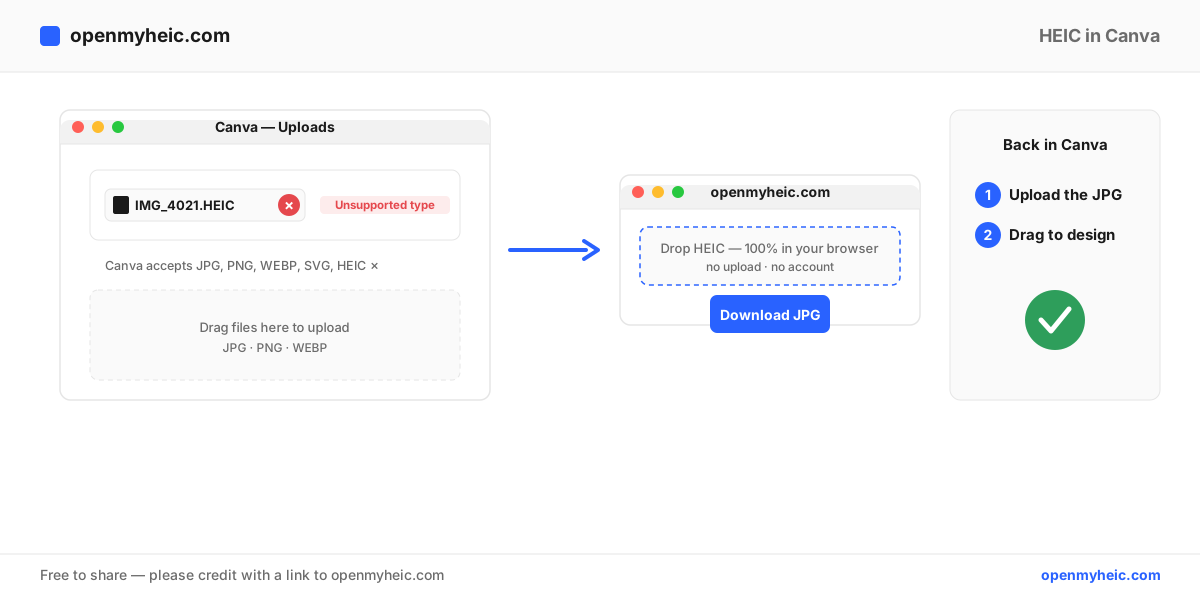
Which file types does Canva accept?
Canva's uploader supports JPG, PNG, WEBP, SVG, and (for documents) PDF for images, plus a few video formats. HEIC is not on the list. So any photo straight off a recent iPhone or iPad — where HEIC is the default — has to be converted before Canva will take it.
Why Canva doesn't support HEIC
HEIC (High Efficiency Image Container) uses HEVC/H.265 compression, which carries licensing patents. Web apps like Canva would need to license and ship an HEVC decoder to every browser session to read HEIC directly — so, like most online design tools, Canva simply doesn't. JPG and PNG are universal and license-free, which is why they're accepted everywhere.
The fix: convert HEIC to JPG, then upload
On a computer
- Open the HEIC to JPG converter.
- Drag your
.heicfiles onto the page. Conversion runs locally in your browser — your photos are never uploaded. - Download the JPG.
- In Canva, open the Uploads tab and drag the JPG in. It appears in seconds.
On a phone (iPhone or Android)
The same page works in mobile Safari or Chrome:
- Open openmyheic.com/heic-to-jpg in your browser.
- Tap to select the HEIC photos from your camera roll and convert them.
- Save the JPGs back to your photos.
- In the Canva app, add an image and pick the JPG version.
Designing with a lot of photos? The batch converter turns an entire set of HEICs into JPGs at once, so you're not doing them one at a time.
JPG or PNG for Canva?
| Your image | Best format | Why |
|---|---|---|
| Regular photo | JPG | Smallest file, uploads and renders fastest in Canva |
| Photo with text/logo overlay you'll export crisp | PNG | Lossless, no compression artifacts on edges |
| Graphic that needs transparency | PNG | JPG can't store transparency |
For most Canva work — social posts, presentations, flyers — JPG is the right choice. Reach for PNG only when you need transparency or pixel-perfect edges.
Stop the problem at the source (optional)
If you'd rather your iPhone stop making HEIC files altogether, change the camera setting:
Settings → Camera → Formats → Most Compatible.
New photos will save as JPG and upload to Canva directly. Existing HEIC photos still need converting — see our iPhone HEIC to JPG guide for the details and trade-offs (HEIC files are about half the size, so you'll use more storage).
Troubleshooting
- The JPG uploads but looks lower quality. Re-convert and keep the quality high; a single conversion is visually identical to the original. For a lossless copy use PNG.
- Canva still won't take the file. Confirm the file extension is actually
.jpgor.png, not.heicrenamed. Renaming doesn't convert — you must re-encode, which the converter does. - Photos exported from Canva are HEIC. They won't be — Canva exports JPG, PNG, PDF, and more. HEIC only matters on the way in.
- A big batch is slow on your phone. Convert on a computer with the batch tool, which handles large sets faster.
Frequently asked questions
Can Canva open HEIC files at all?
No. Canva's uploader rejects HEIC. Convert to JPG or PNG first and it works everywhere in Canva.
Does converting HEIC to JPG reduce quality for Canva designs?
Not noticeably. One high-quality conversion looks identical on screen and in print. Use PNG if you want zero compression.
Is there a Canva HEIC plugin or app?
There's no official one. The simplest, safest method is converting the file before uploading — no plugin, no account, no upload of your originals.
The bottom line: Canva doesn't support HEIC, but the workaround takes seconds — convert HEIC to JPG (or PNG for transparency) in your browser, then drag it into your design. Everything runs on your device, so your photos stay private. Curious what HEIC actually is? Read our explainer.