HEIC in Google Drive and Docs — How to View and Use Them
You upload iPhone photos to Google Drive and get a gray box that says "No preview available." Or you try to insert one into a Google Doc or Slide and it's missing or won't add. Drive stores the files fine — it just can't display HEIC, and Docs, Sheets, and Slides can't insert what Drive can't render.
In a hurry? Convert your HEIC photos to JPG first, upload those, and everything previews, inserts, and shares normally. Free, browser-based, nothing uploaded to us.
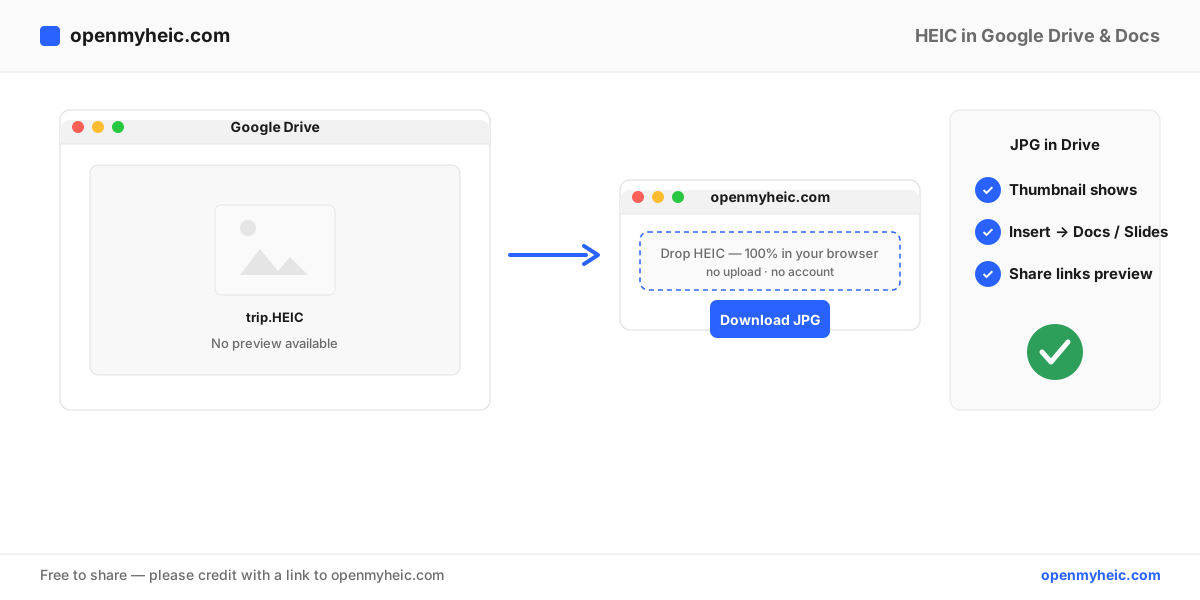
Why Google Drive won't preview HEIC
Google Drive will happily store a HEIC file, but its preview engine and the Google Workspace apps don't render HEIC because it uses HEVC/H.265 compression with licensing patents. That means:
- Drive: "No preview available," no thumbnail.
- Google Docs / Slides: Insert → Image often can't place the HEIC, or inserts a broken image.
- Google Photos: This one does handle HEIC — but Photos and Drive are separate products, so a HEIC in Drive still won't preview.
- Shared links: The person you share with sees the same blank preview.
The fix: convert to JPG, then upload
- Open the HEIC to JPG converter.
- Drag your
.heicfiles in. Conversion runs locally in your browser — your photos aren't uploaded anywhere. - Download the JPGs — or use the batch converter for a whole folder.
- Upload the JPGs to Google Drive.
Now every photo shows a thumbnail, previews on click, inserts into Docs and Slides, and previews correctly for anyone you share with.
Inserting into a Google Doc or Slide
Once the photo is a JPG, use Insert → Image → Drive (or Upload from computer) and it places instantly. You can also drag a JPG straight into the document. PNG works too if you need transparency or a lossless copy — grab one from the HEIC to PNG tool.
Viewing a HEIC that's already in Drive
Don't want to convert yet, just need to see it? Download the file and drop it into the browser-based HEIC viewer — it decodes HEIC on your device and shows the photo instantly, no software needed.
Which format for Google Workspace?
| Use | Format | Why |
|---|---|---|
| Photos in Docs, Slides, shared folders | JPG | Smallest, previews fastest, universally supported |
| Images needing transparency | PNG | JPG can't hold transparency |
| Print-quality masters | PNG | Lossless, no repeated compression |
For everyday Drive and Docs use, JPG is the right pick.
Troubleshooting
- Uploaded JPGs still show no preview. Give Drive a minute to generate thumbnails, then refresh. If one file is stuck, re-upload it.
- Drive on desktop sync keeps the HEIC. The desktop app mirrors whatever's in your folder. Convert the local files to JPG and let it re-sync.
- You have hundreds of photos. Use the batch converter rather than one at a time, then bulk-upload the JPGs.
- Google Photos shows them but Drive doesn't. That's expected — they're different products. Convert if you specifically need them usable in Drive/Docs.
Frequently asked questions
Why does Google Drive say "no preview available" for my iPhone photos?
They're HEIC files, which Drive's preview engine can't render. Convert to JPG and previews appear.
Can I insert a HEIC into Google Docs?
Not reliably. Convert to JPG or PNG first, then use Insert → Image.
Does converting to JPG lose quality?
A single high-quality conversion is visually identical. Use PNG for a lossless copy.
The bottom line: Google Drive stores HEIC but can't display it, so convert first. Turn your HEIC into JPG (or PNG), upload those, and every photo previews, inserts into Docs and Slides, and shares cleanly. Want to just peek at one file? Use the HEIC viewer. New to the format? See what a HEIC file is.