Why WordPress Won't Accept HEIC (and How to Upload Your Photos)
You drag an iPhone photo into the WordPress Media Library and get "Sorry, this file type is not permitted for security reasons." WordPress blocks HEIC uploads by default — and even if you force it in, most themes and browsers can't display HEIC on the front end. The clean fix is to convert to JPG (or PNG) first, then upload.
In a hurry? Convert your HEIC to JPG in your browser, then upload the JPG. It's free, runs on your device, and the image displays correctly in every theme and browser.
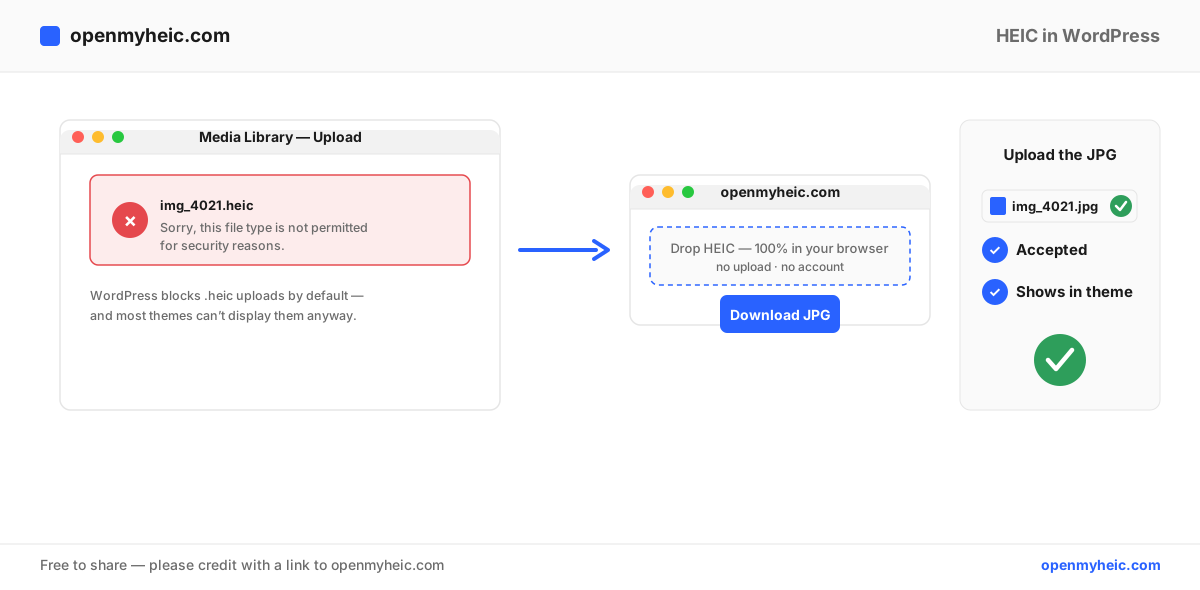
Why WordPress blocks HEIC
Two separate reasons:
- Allowed file types. WordPress ships with a whitelist of MIME types it will accept, and HEIC isn't on it. Uploading one triggers the "not permitted for security reasons" message.
- Display support. Even if you add HEIC to the allowed types, browsers can't render HEIC, so visitors would see a broken image. WordPress's image tools (thumbnails, responsive sizes) also can't process it.
So HEIC is doubly unsuitable for a website. Converting to a web-native format solves both problems at once and is what you'd want for performance and compatibility anyway.
The fix: convert to JPG, then upload
- Open the HEIC to JPG converter (or HEIC to PNG for graphics/transparency).
- Drag your
.heicfiles in. Conversion runs locally in your browser — your photos are never uploaded to us. - Download the JPGs. For a gallery or a batch of posts, use the batch converter.
- In WordPress, go to Media → Add New and upload the JPGs. They're accepted, thumbnailed, and display everywhere.
JPG is the right default for site photos — it's small, fast, and universally supported, which also helps your page speed and Core Web Vitals. Reach for WebP if you want even smaller files and your audience is on modern browsers.
Should you just allow HEIC uploads instead?
You can add HEIC to WordPress's allowed types with a plugin or an upload_mimes filter, and some plugins even auto-convert on upload. It's not recommended for most sites:
- Browsers still can't display HEIC, so you'd depend on the plugin converting every image server-side.
- It adds a plugin (and its updates, conflicts, and overhead) for something a 10-second conversion handles.
- Server-side HEVC decoding isn't guaranteed on shared hosting.
Converting before upload keeps your media library clean, portable, and free of an extra dependency.
Format options for WordPress
| Format | Best for | Notes |
|---|---|---|
| JPG | Photos, most images | Smallest, fastest, universal — the default choice |
| PNG | Logos, graphics, transparency | Lossless, larger files |
| WEBP | Max performance | Smaller than JPG; supported by all current browsers |
Troubleshooting
- Still blocked after converting. Confirm the file really is
.jpg— renaming a.heicdoesn't convert it. Re-encode with the converter. - Image uploads but looks huge / slow. iPhone photos are high-resolution. Resize before upload or let an image-optimization plugin generate smaller sizes.
- Colors look off after upload. Some HEICs carry a wide-gamut profile. Converting to JPG bakes in sRGB, which is what browsers expect — usually an improvement.
- Bulk-migrating a lot of photos. Convert the whole set with the batch tool, then bulk-upload.
Frequently asked questions
Can WordPress display HEIC images?
No. Even if uploaded, browsers can't render HEIC, so visitors see a broken image. Use JPG, PNG, or WebP.
Is there a WordPress plugin for HEIC?
Yes, some add HEIC support and auto-convert on upload — but they add overhead and still rely on server-side conversion. Converting before upload is simpler and more reliable.
Does converting reduce quality?
A single high-quality JPG conversion is visually identical. Use PNG for a lossless copy.
The bottom line: WordPress blocks HEIC because it's not an allowed type and browsers can't display it. Convert HEIC to JPG (or WebP for speed) before uploading and your photos are accepted, optimized, and visible in every theme. New to the format? See what a HEIC file is.