How to Open HEIC Files in Photoshop (2026 Fix)
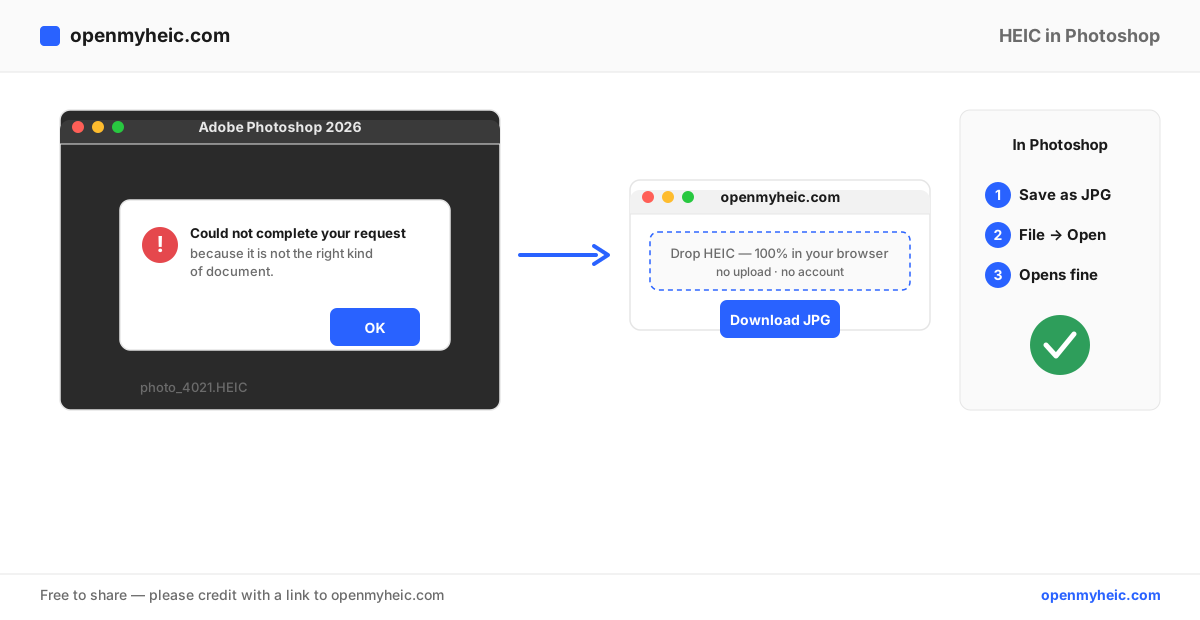
You drag an iPhone photo into Photoshop and instead of your image you get a blunt error: "Could not complete your request because it is not the right kind of document." The file is a HEIC — Apple's default photo format since iOS 11 — and most versions of Photoshop can't read it directly.
In a hurry? The reliable fix is to convert the HEIC to JPG (or PNG for lossless) first, then open it in Photoshop like any normal image. It's free, runs entirely in your browser, and your photos never leave your device.
Why Photoshop can't open HEIC
Photoshop only reads formats it has a decoder for. HEIC (High Efficiency Image Container) stores its image data with HEVC/H.265 compression, which is patent-encumbered — so Adobe never shipped a built-in HEIC reader in most releases. A handful of recent Photoshop builds on Windows can open HEIC if the operating system's HEVC codec is installed, but this is inconsistent across versions and machines, which is why the error is so common.
There's a second catch: even when Photoshop opens a HEIC, it discards the parts that make HEIC special — the depth map, any Live Photo motion, and the HDR gain map. You end up editing a flat still image anyway, so converting to a standard format first loses nothing you'd have kept.
Method 1 — Convert to JPG or PNG first (works on every version)
This is the most dependable route and takes about ten seconds:
- Open the HEIC to JPG converter (use HEIC to PNG if you want a lossless copy for heavy editing).
- Drag your
.heicfiles onto the page. Conversion happens locally in your browser — nothing is uploaded. - Download the JPG or PNG.
- In Photoshop, choose File → Open and select the converted file. It opens immediately.
For a whole camera roll, use the batch converter to turn dozens or hundreds of HEICs into JPGs in one pass.
JPG or PNG for Photoshop?
Use JPG for photos you'll lightly edit or export for web. Use PNG when you need a lossless master — repeated saves, compositing, or graphics with hard edges — because JPG re-compresses every time you save.
Method 2 — Install the HEVC codec (Windows only, hit or miss)
If you're on Windows 10 or 11 with a recent Photoshop, you can try enabling system-level HEIC support:
- Open the Microsoft Store and install HEIF Image Extensions (free).
- Also install HEVC Video Extensions — Microsoft charges around $0.99 for it, and it's the piece most iPhone HEICs actually need.
- Restart Photoshop and try File → Open again.
The downsides: it costs money, it needs admin rights, it only helps on Windows, and it still fails on some files. If you manage several PCs, converting to JPG once is cheaper and more portable. See our HEIC codec on Windows 10 guide for the full picture.
Method 3 — Export from Preview or Photos first (Mac)
On a Mac you don't need any of this. Open the HEIC in Preview, choose File → Export, pick JPEG or PNG, and open the result in Photoshop. Our convert HEIC to JPG on Mac guide walks through it. That said, the browser converter above is quicker if you're doing more than one or two.
HEIC in Photoshop: methods compared
| Method | Cost | Works on | Keeps quality | Batch |
|---|---|---|---|---|
| Convert to JPG/PNG online | Free | Windows, Mac, Linux, Chromebook | Yes (PNG lossless) | Yes |
| HEVC codec (Microsoft Store) | ~$0.99 + admin | Windows only | Yes, when it works | No |
| Export via Mac Preview/Photos | Free | Mac only | Yes | Limited |
Troubleshooting
- "It is not the right kind of document" persists after installing the codec. The image uses HEVC compression the codec didn't handle. Convert it to JPG/PNG instead.
- Photoshop opens the HEIC but colors look flat or washed out. That's the lost HDR gain map. Convert to PNG and, if needed, adjust levels manually.
- Camera Raw won't take it either. Camera Raw follows the same decoder limits. Convert first, then open the JPG/PNG in Camera Raw.
- Hundreds of files. Don't convert one by one — run them all through the batch converter, then use Photoshop's File → Scripts → Image Processor on the folder of JPGs.
Frequently asked questions
Is there a HEIC plugin for Photoshop?
There's no official Adobe HEIC plugin. Third-party ones exist but are unmaintained and risky. Converting to JPG or PNG is the supported, reliable path.
Will converting HEIC to JPG lose quality?
JPG is lossy, but a single high-quality conversion is visually indistinguishable from the original. For zero loss across many edits, convert to PNG instead.
Can I open HEIC in Photoshop Elements?
Same limitation and same fix — convert to JPG/PNG first, then open in Elements.
The bottom line: the fastest, most reliable way to work with iPhone photos in Photoshop is to convert HEIC to JPG (or PNG) in your browser first. No codec, no cost, no upload — and it works on every version of Photoshop on every operating system. New to the format? Read what a HEIC file is.