How to Open HEIC Files on a Chromebook (Free, No Install)
You copy iPhone photos to your Chromebook, open the Gallery app, and get "Can't open this file" or an unsupported-format message. ChromeOS doesn't read HEIC, and because a Chromebook can't install Windows or Mac software, the usual desktop fixes don't apply. The good news: the answer is built for exactly this situation — a converter that runs in the browser you already have.
In a hurry? Open the HEIC to JPG converter in Chrome, drop your photos in, and download standard JPGs. It runs on-device — nothing is uploaded — and needs no install, account, or Play Store app.
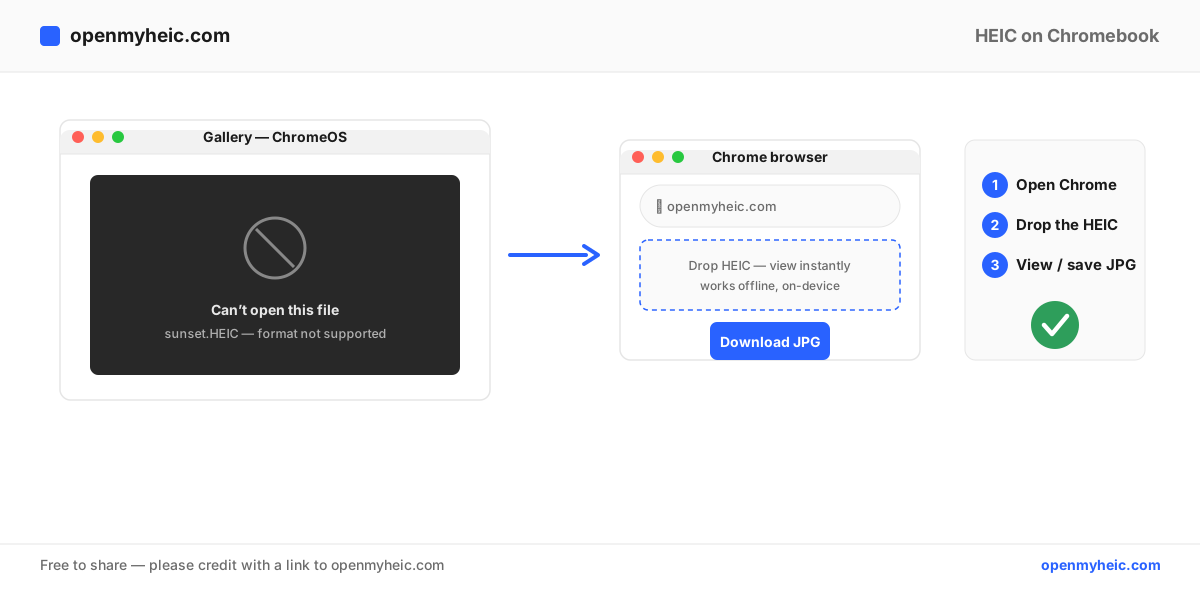
Why Chromebooks can't open HEIC
ChromeOS's built-in Gallery and image viewers don't include a decoder for HEIC/HEVC, the compressed format iPhones use, because of its licensing patents. And the Chromebook model — lightweight, web-first, locked-down — means you can't just install a codec pack or a desktop converter the way you would on Windows. That rules out most guides written for PCs and Macs. What a Chromebook does have is a capable modern browser, and that's all this needs.
The fix: convert in the browser
- Open Chrome and go to the HEIC to JPG converter.
- Drag your
.heicfiles onto the page, or tap to pick them from Files or a connected phone/SD card. - The photos convert on your Chromebook, inside the browser — they're never sent to a server.
- Download the JPGs. They open instantly in Gallery and everywhere else.
Just need to see the photos without saving new files? Use the browser-based HEIC viewer — it decodes and displays them on the spot.
For a large import — a whole trip's worth of photos — the batch converter does the entire set at once.
Getting the photos onto your Chromebook
- From an iPhone by cable: connect the phone, open Files, and copy from the phone's DCIM folder. (Tip: setting the iPhone to Settings → Camera → Formats → Most Compatible makes new photos JPG, avoiding the whole issue.)
- From an SD card or USB drive: insert it and open Files.
- From Google Drive or Photos: download the file, then convert it. Note that Drive won't preview HEIC either — see HEIC in Google Drive.
Why the browser method fits Chromebooks best
| Option | Works on ChromeOS | Install needed | Privacy |
|---|---|---|---|
| Browser converter (this) | Yes | None | On-device, nothing uploaded |
| Windows/Mac codec packs | No | N/A | N/A |
| Android HEIC apps (Play Store) | Sometimes, if Play is enabled | App install | Varies |
| Cloud converter sites | Yes | None | Files uploaded to a server |
A tool that runs locally in Chrome gives you the convenience of a web app without uploading your personal photos to someone else's server.
Troubleshooting
- "Can't open this file" in Gallery after converting. Make sure you opened the JPG, not the original
.heic. Both may sit in the same folder. - The Files app won't show a thumbnail. HEIC gets no thumbnail on ChromeOS. Convert to JPG and thumbnails appear.
- You're offline. The converter still works — it runs in the browser and doesn't need a connection once the page has loaded.
- Play Store app asks to upload photos. Skip it. The browser tool keeps everything on your device.
Frequently asked questions
Can ChromeOS open HEIC natively?
No. The built-in Gallery can't read HEIC. A browser-based converter or viewer is the simplest fix.
Do I need to install anything on my Chromebook?
No. Everything runs in Chrome — no app, no extension, no account.
Are my photos uploaded when I convert?
No. Conversion happens locally in your browser; your files never leave the Chromebook.
The bottom line: Chromebooks can't open HEIC, but they don't need to install anything to fix it. Convert HEIC to JPG or view it right in Chrome — on-device, free, and private. Setting your iPhone to Most Compatible stops new HEIC files at the source. Curious what HEIC is? Read our explainer.